Reports say the government’s BBC white paper, due before Christmas, will propose extending the licence fee to YouTube, Netflix, Disney+ and Amazon streaming, but nothing is decided. This guide shows two ways to prepare with a Raspberry Pi 4 (a tiny computer) running Pi-hole: a Pi-only build that costs little, and a VLAN build that enforces the rules properly.

Why block everything: the guest problem
Today you need a licence to watch live TV or to use iPlayer, and the reports say the white paper would widen that to streaming services such as YouTube, Netflix, Disney+ and Amazon. The press coverage does not say whether the new rule would attach to a household, an address, an account or a device.
Currently when a friend joins your WiFi and opens iPlayer or YouTube on their own phone. Today the rules for visitors using their own devices are murky (in theory you may be liable for a TV license), and nobody can say how an extended licence would treat that traffic. I am not claiming guests would make you liable although it’s technically possible based on the BBCs wording. Certainly if the test turns out to be “viewing at your address” or “over your connection”, you would rather your network had never carried it.
Blocking everything at the network is the cheapest way to avoid reasoning about who is covered, and it also catches the smart TV that autoplays a trailer and the teenager who “just watches one video”. I should add, why would you have a smart TV actually plugged into the internet or WiFi? They’re absolutely awful data collection devices and low-security to boot.
The solutions below have limits, specifically a block on your network does nothing for phones on mobile data. And until the white paper is published, treat all of this as preparation, not compliance.
Option A: Pi-hole only, no VLANs
This build needs one Raspberry Pi 4 and your existing router. It blocks every device that uses your router’s DHCP settings and honours DNS. It is the easy version, and it is best-effort rather than enforced.
Flash the Pi. Use Raspberry Pi Imager to write Raspberry Pi OS Lite (64-bit) to the microSD card. In the Imager’s settings, set a hostname such as
pihole, enable SSH and add your SSH key or a password.Reserve its address. In your router’s DHCP settings, give the Pi a fixed address, for example
192.168.1.2. A reservation is better than a static address on the Pi, because the router stays the single source of truth.Install Pi-hole. SSH in and run the official installer:
curl -sSL https://install.pi-hole.net | bash. Choose the Ethernet interface, pick an upstream resolver you trust, and note the admin password it prints.Point your network at it. In the router’s DHCP settings, set the DNS server to the Pi’s address. Leave the secondary DNS blank, or set it to the Pi as well. A public secondary such as 8.8.8.8 gives every device a polite way around the block (8.8.8.8 is a commonly used third party DNS server).
If the router will not let you change DNS, turn off its DHCP server and switch on Pi-hole’s own (Settings, then DHCP). Do this on a quiet evening, and only one DHCP server may run at a time.
Add the block rules from the regex list below, then renew the lease on a test device.
Test it. From a laptop, run
nslookup netflix.com 192.168.1.2. A blocked domain returns0.0.0.0or no answer, and the query shows as blocked in the Pi-hole query log.
What Option A cannot do: it treats every device the same, so you cannot block guests while leaving your own devices alone, and anything with its own hard-coded DNS can walk past it. If either bothers you, read on to Option B.
VLANs in plain English
A VLAN (virtual LAN) splits one physical network into several separate ones. Picture a single switch behaving as two or three switches that happen to share a box. Each frame of traffic carries a small numeric tag, the VLAN ID (defined by the 802.1Q standard), and devices on one VLAN cannot see devices on another unless a router lets them through.
For this project the point is simple. Put your guests’ WiFi on its own VLAN, say VLAN 30, and it becomes its own subnet. Pi-hole can then treat the whole guest subnet as one group with the strictest rules, and your router can force every guest DNS lookup to the Pi and refuse everything else.
A working VLAN setup needs three things:
A router or firewall that routes between VLANs and can write firewall rules per VLAN. Most ISP routers cannot.
A managed or “smart” switch that understands 802.1Q tags and can carry several VLANs on one cable.
A WiFi access point that can map each SSID (for example “Home” and “Guest”) to a VLAN.
The TP-Link TL-SG108E is the usual starting point. It is an 8-port gigabit “Easy Smart” switch that supports up to 32 VLANs, including port-based and 802.1Q tag-based modes. It is a Layer 2 switch, so it does not route; your router still does that.
Shortlist:
TP-Link TL-SG108E is a 8 port switch with support for 802.1Q and up to 32 VLANs. It’s my default pick with a metal case, and simple web-managed configuration.
TP-Link TL-SG105E is a 5 port switch with support for 802.1Q. Same family, fewer ports; enough for a small desk setup.
Netgear GS308E is a 8 port switch with support for 802.1Q. A comparable alternative.
TP-Link TL-SG108PE is 8 port switch of which 4 ports are PoE (power over ethernet) and of course it supports 802.1Q for VLANs. It can powers a PoE access point over the same cable or some CCTV cameras etc.
I only checked the TL-SG108E’s specification in detail was checked while writing this although I have a TL-SG108PE and other equipment. Before buying anything confirm 802.1Q support on the listings before you buy, because unmanaged lookalikes with near-identical model numbers exist. The TL-SG108 without the E is unmanaged and will not do this job.
A practical gotcha with Easy Smart switches: after creating a VLAN, set each access port’s PVID (its default VLAN) to match, or untagged devices stay on VLAN 1.
Option B: Pi-hole with VLANs
This build enforces the rules. Guests join a separate WiFi network on VLAN 30, the router forces all of their DNS to the Pi, and the Pi applies the streaming block to that subnet only.
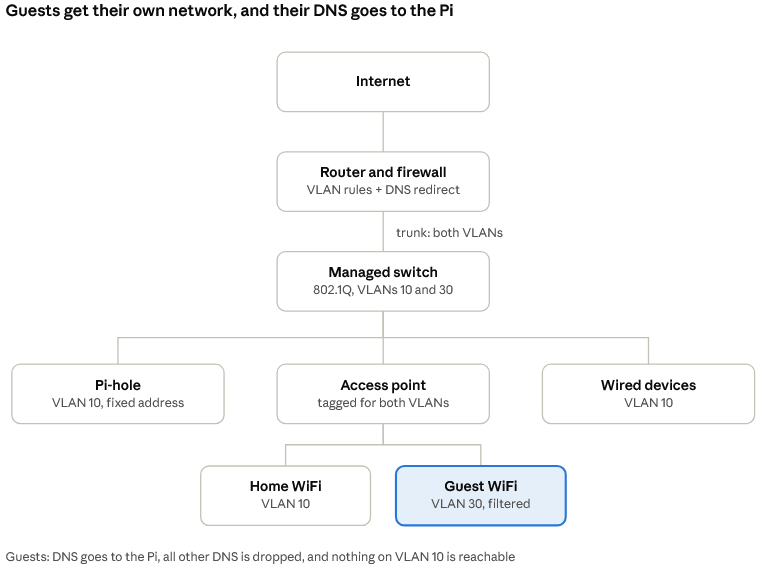
The guest network is the one tinted box: everything it asks for goes through the Pi, and it cannot reach your own devices.
Build the Pi exactly as in steps 1 to 3 of Option A, on VLAN 10 with a fixed address.
Create the VLANs on the router. Make VLAN 10 for home (for example
192.168.10.0/24) and VLAN 30 for guests (192.168.30.0/24). Turn on DHCP for each and hand out the Pi’s address as the only DNS server.Configure the switch. In the TL-SG108E’s web page, enable 802.1Q VLAN and create VLANs 10 and 30. Tag both on the port to the router and the port to the access point. Make the Pi and wired-device ports untagged members of VLAN 10, with their PVID set to 10.
Configure the access point. Create two SSIDs, “Home” mapped to VLAN 10 and “Guest” mapped to VLAN 30, and switch on client isolation for the guest SSID.
Write the router firewall rules. Let VLAN 30 reach the Pi on port 53 (UDP and TCP) and the internet, and nothing on VLAN 10. Add a destination-NAT rule that sends any other port-53 traffic from VLAN 30 to the Pi’s address, and drop port 853 (DNS over TLS). On a MikroTik router this is a dstnat rule on each VLAN interface.
Let the Pi answer other subnets. In Pi-hole’s DNS settings, permit requests from all origins, since guests arrive from a different subnet. This is only safe because your router never exposes port 53 to the internet.
Apply the groups. Follow “Who the rules apply to” below to put the guest subnet in the Streaming block group.
Test. Join the Guest SSID on a phone, run a lookup for netflix.com, and try to open youtube.com. Both should fail, while the same lookups on Home WiFi still work.
One trap: if your router acts as a DNS proxy, every query reaches the Pi from the router’s address and the guest subnet rule never matches. Hand out the Pi’s address directly in each VLAN’s DHCP settings so the query log shows real client addresses.
The block rules
In the Pi-hole admin page, open Domains, choose Add a new domain, tick Regex filter, set it to Deny, and paste one pattern per entry. The pattern style (\.|^)example\.com$ matches the domain and all its subdomains. This is a starting list from general knowledge, not a verified one, so test it against your own query log.
(\.|^)youtube\.com$
(\.|^)youtu\.be$
(\.|^)googlevideo\.com$
(\.|^)ytimg\.com$
(\.|^)youtube-nocookie\.com$
(\.|^)youtubei\.googleapis\.com$
(\.|^)netflix\.com$
(\.|^)netflix\.net$
(\.|^)nflxvideo\.net$
(\.|^)nflximg\.net$
(\.|^)nflximg\.com$
(\.|^)nflxext\.com$
(\.|^)nflxso\.net$
(\.|^)disneyplus\.com$
(\.|^)disney-plus\.net$
(\.|^)bamgrid\.com$
(\.|^)dssott\.com$
(\.|^)disneystreaming\.com$
(\.|^)primevideo\.com$
(\.|^)aiv-cdn\.net$
(\.|^)aiv-delivery\.net$
(\.|^)pv-cdn\.net$
(\.|^)amazonvideo\.com$
(\.|^)iplayer\.bbc\.co\.uk$
Three notes on using it:
Do not block amazon.com or amazon.co.uk. Prime Video shares infrastructure with the shop, and a blanket block breaks your shopping and some smart-home gear. Test Prime Video on one device first.
Watch the query log. Start a video on a test device, note which hostnames it asks for that are still allowed, and add them. Streaming delivery hostnames change, so this is a maintenance job, not a one-off.
BBC. The list blocks iPlayer’s front end only. Blocking bbc.co.uk wholesale also kills BBC News and Sport, which you may or may not want. I haven’t watched the BBC since about 2003 so I don’t know why you might want to access anything they do.
Who the rules apply to
Pi-hole’s groups work per client. A client not assigned to any group uses only the Default group, and rules sitting in other groups are ignored for it. So you have two choices:
Block for everyone (Option A). Add the rules to the Default group, which is what happens if you leave the group selection alone.
Block for guests only (Option B). Create a group called
Streaming block, assign the rules to it, then under Clients add your guest subnet in CIDR form (for example192.168.30.0/24) and assign it to bothDefaultandStreaming block, so guests keep the ordinary ad lists as well.
What this will not catch
DNS blocking is a strong first layer, not a wall. These are the usual ways round it:
Hard-coded DNS. Some smart TVs, Chromecasts and apps ignore your DHCP settings and ask 8.8.8.8 directly. Option B fixes this with a router rule that redirects or drops outbound DNS. Option A cannot, unless your router can block outbound port 53 from everything except the Pi.
DNS over HTTPS. Browsers and some apps can tunnel DNS inside ordinary web traffic. Disable it in managed browsers where you can, and block known DoH endpoints at the router.
IPv6. If your router hands out its own IPv6 DNS server, devices may use it and skip the Pi. Turn IPv6 off on the LAN or point its DNS at the Pi too.
VPNs and mobile data. A phone on 5G or a VPN never touches your network, so it never touches your filter.
Hostnames that change. Streaming services rotate delivery domains. Expect to add a few entries every few months.
One more point of honesty. Nothing here makes you compliant with a rule that does not exist yet. Once the white paper is published, check how it defines liability and what counts as viewing, and adjust.
Bill of materials
The links open Amazon UK search results for each item, so you pick the current listing and price yourself. Check stock and reviews before buying. If the Pi 4 is scarce, a Pi 3B+ or a Pi 5 follows the same steps, and the Pi 5 needs a 5A power supply.
Option A: Pi only
Item, Qty, What to look for
Raspberry Pi 4 Model B, 1, 2GB is plenty for Pi-hole; 4GB if you want headroom
Official Raspberry Pi USB-C power supply, 1, 5.1V 3A, UK plug
microSD card, high endurance, 1, 32GB; the endurance range copes better with constant logging
Raspberry Pi 4 case with heatsink, 1, Passive cooling is fine for this workload
Cat6 Ethernet patch cable, 1, Wired, never WiFi, for a DNS server
Option B: Pi with VLANs
Everything in Option A, plus the rows below. Skip the router or access point rows if yours already handle VLANs.
TP-Link TL-SG108E smart switch, x1, 8 ports, 802.1Q; the TL-SG108 without the E is unmanaged
Cat6 Ethernet patch cables, x4, Router to switch, Pi, access point, spare
MikroTik hEX (RB750Gr3) router, x1, Only if your router cannot do VLANs or firewall rules; RouterOS has a learning curve
TP-Link Omada EAP610 access point, x1, Only if your WiFi cannot map an SSID to a VLAN; confirm multi-SSID with VLAN support in the listing
PoE injector, 802.3af/at, x1, Powers the access point; skip it if you buy the PoE switch below
TP-Link TL-SG108PE switch, x0 or x1, Alternative to the TL-SG108E plus injector, since it has PoE ports
I have not verified the router or access point models against current stock or firmware, so read the listings and recent reviews before ordering.
Sources
Search-result pages consulted on 16 October 2026;